
Step 1 of 9
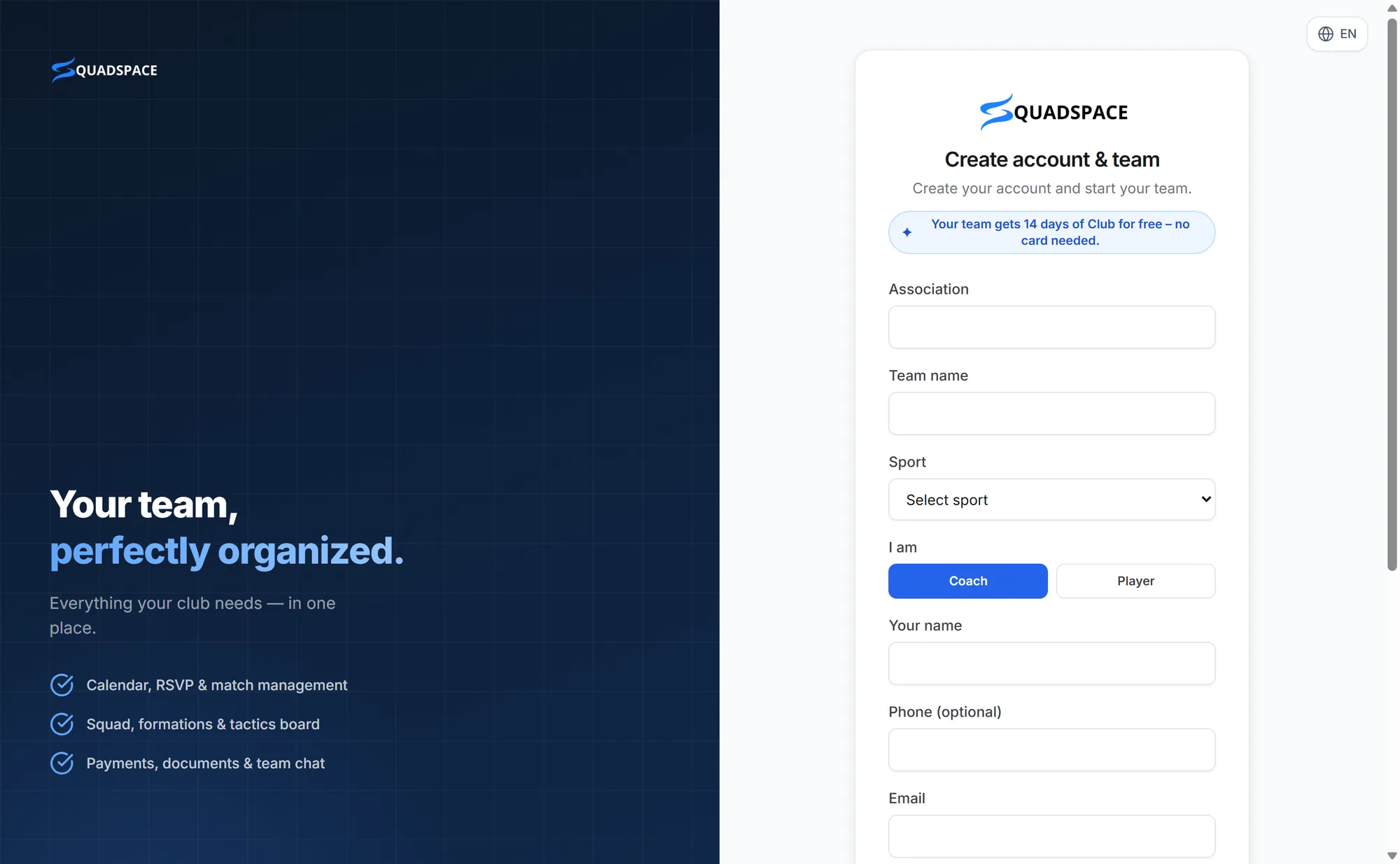
Create your account and team
One short form creates your login, your club and your first team.
- 1
Open the sign-up page – use the Create your team button on this page.
- 2
Fill in Association (your club's name) and Team name, and choose your Sport: football, ice hockey, floorball, basketball, handball or American football.
- 3
Under I am, choose Coach – or Player if you also play in the team – and enter your name.
- 4
Add your email, choose a password (at least 6 characters) and click Sign up.
- 5
If we ask for it, enter the 6-digit code we email you and click Verify and continue. You land straight in your new team.
Tip: Your team automatically gets 14 days of Club for free – every feature unlocked, no card needed.
Good to know: Players, parents and other coaches should not create a team of their own – they join yours with an invite link (step 3).
Step 2 of 9
Set up your team
A few settings make the app feel like yours – and decide what your players see.
- 1
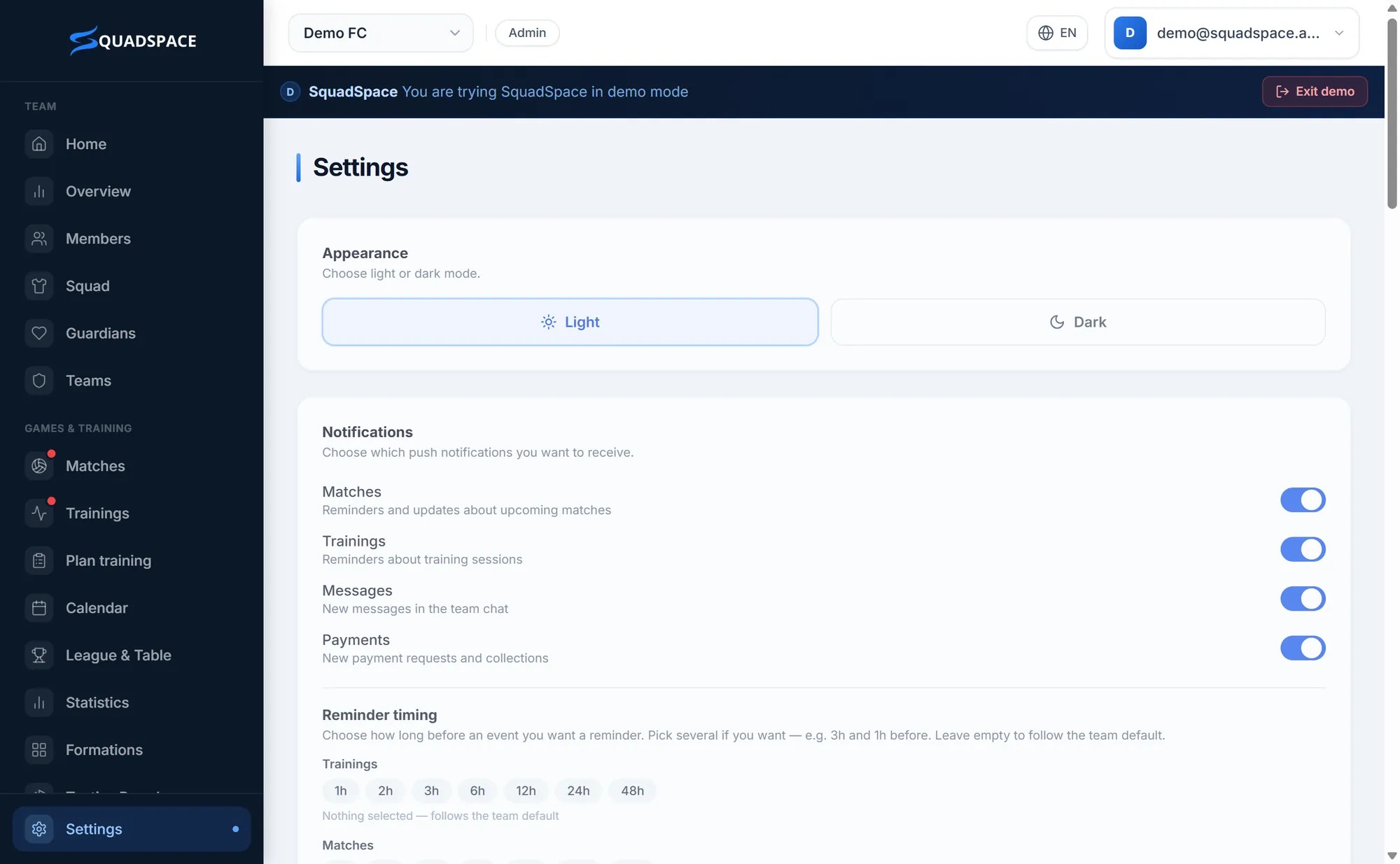
Open Settings in the menu on the left.
- 2
Under Team profile, check the team name and sport.
- 3
Pick your home and away colours under Team colors – they're used in the squad and in formations.
- 4
Under Visible features, hide the tabs your team doesn't need. Under Calendar & RSVP, choose whether players can RSVP to matches and trainings.
- 5
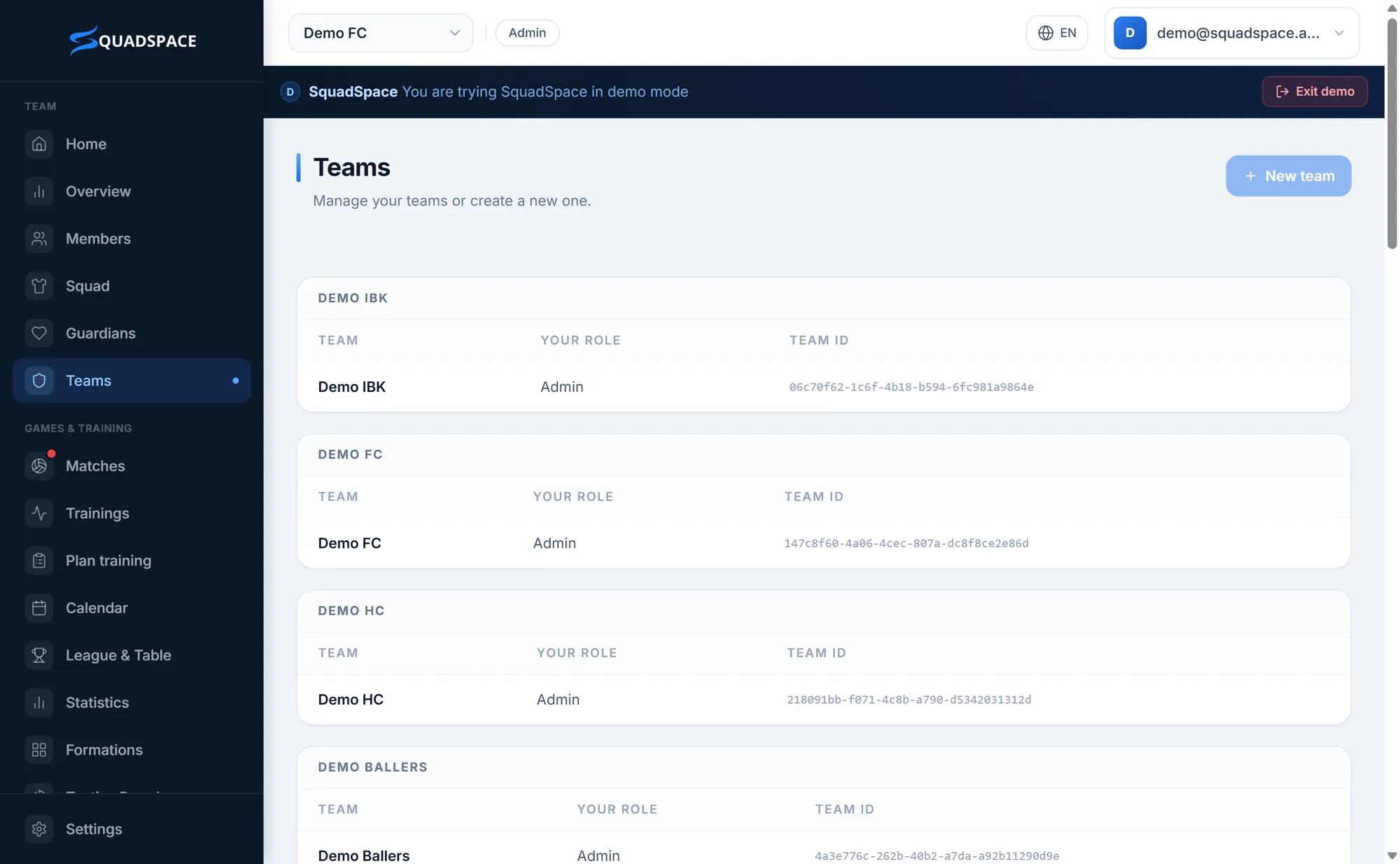
Running several teams in one club? Go to Teams and click New team. Switch between teams with the team menu at the top of the dashboard.
Tip: Extra teams are part of the Club plan – included while your trial runs. Teams in the same club can share one bank account for payments.
Step 3 of 9
Invite players, parents and coaches
Everyone gets their own login, so RSVPs, chat messages and payments are linked to the right person.
- 1
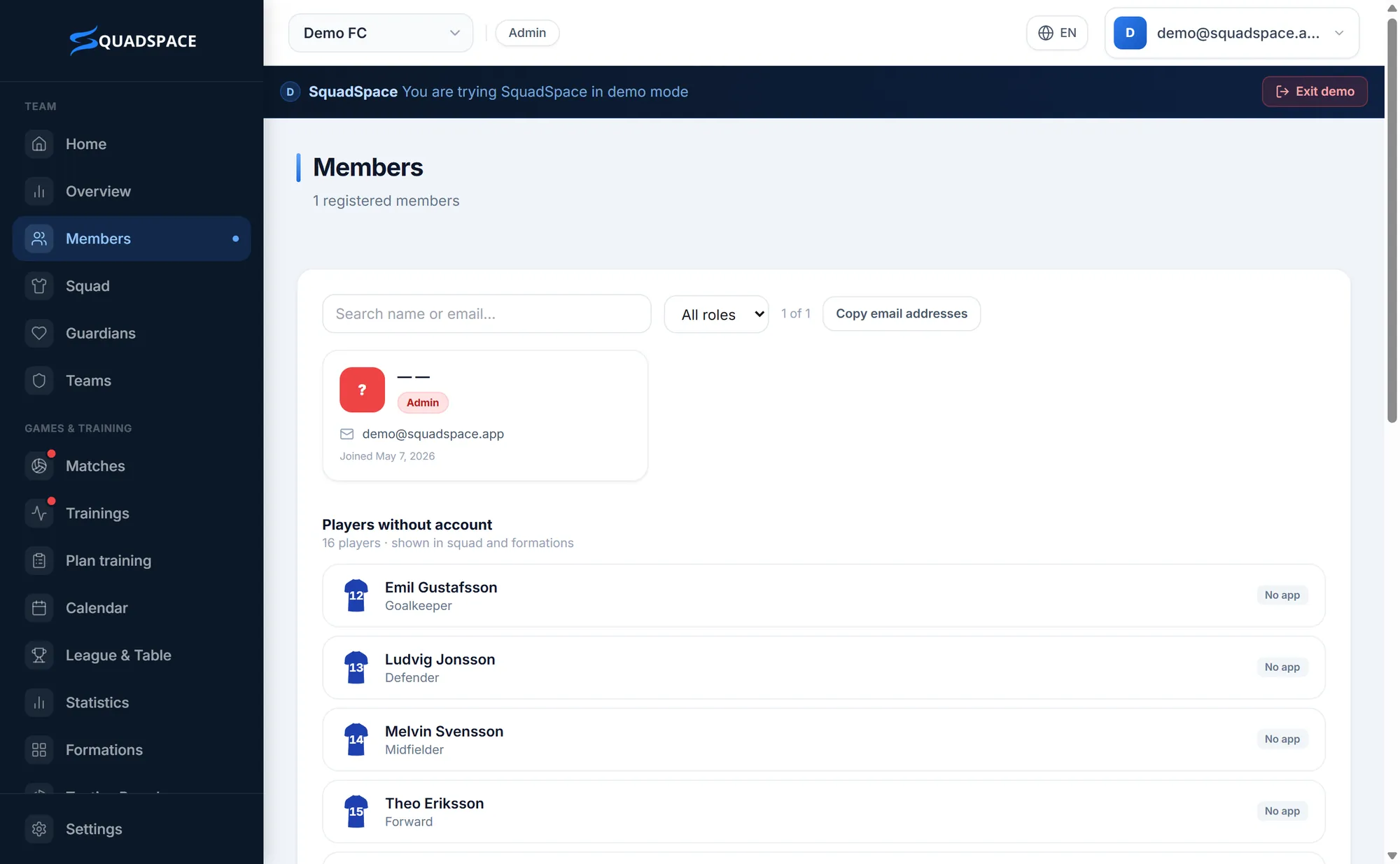
Go to Members and click Invite.
- 2
Choose a role – Player, Coach or Parent. Each role has its own code.
- 3
Click Copy link and share it in your group chat, by email or by text. The same code works for any number of people.
- 4
Whoever opens the link creates an account – or signs in with an existing one – and joins your team with the right role.
- 5
Younger players without a phone? Under Players without account, click Create player – they still show up in the squad and formations. Link their parents under Guardians.
Tip: Codes renew automatically every week, so old links stop working by themselves. You can also create a new code whenever you like.
Good to know: Have a list already? Import on the Members page sends invitations to everyone in a CSV file with name and email.
Step 4 of 9
Add trainings, matches and events
Once the season is in the calendar, players answer from their phone and you see at a glance who's coming.
- 1
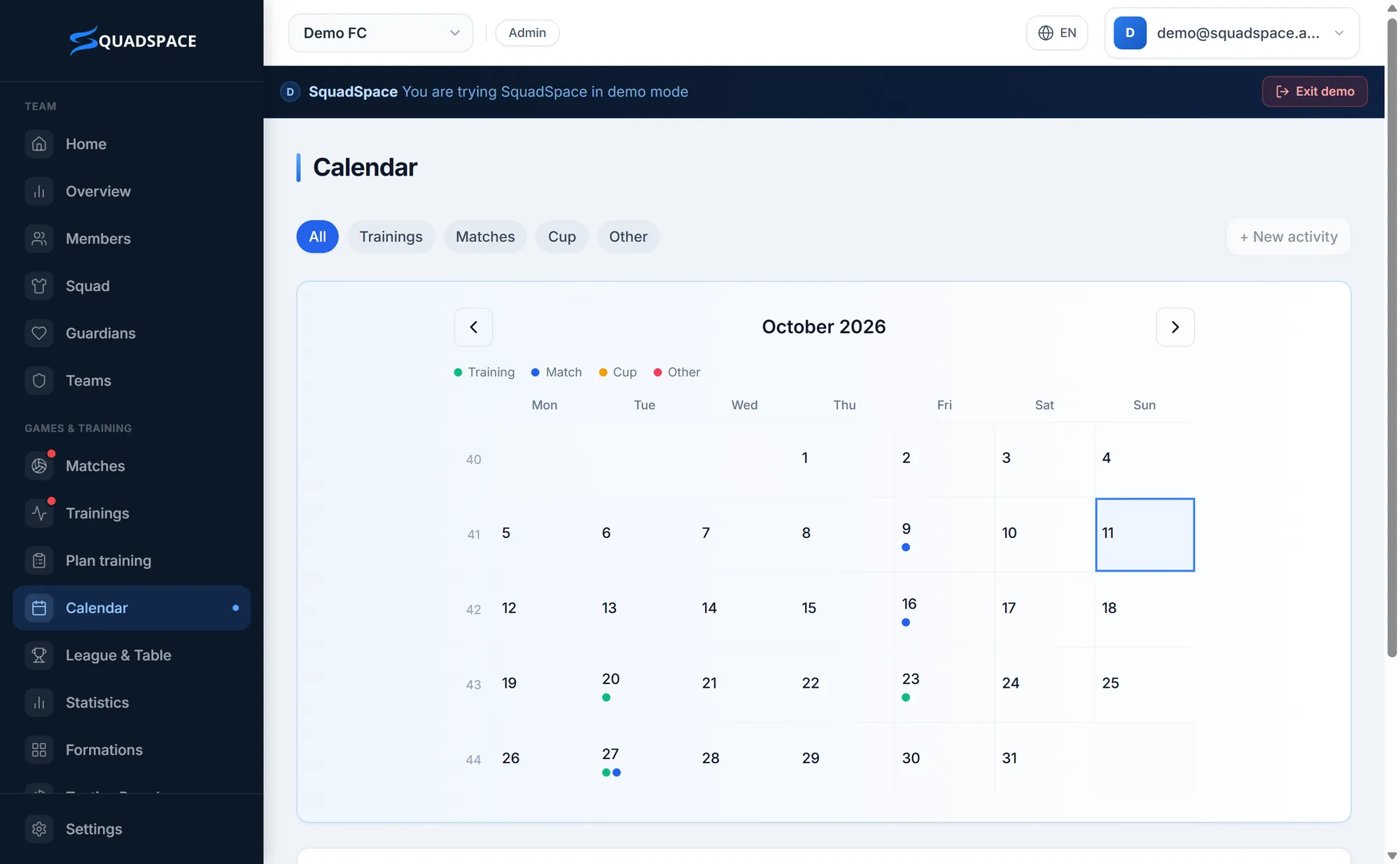
Open Calendar and click + New activity.
- 2
Choose the type – Training, Match, Cup or other – and add date, time and location (plus the opponent for matches).
- 3
For regular sessions, set Recurring to Every week or Every other week, choose the Number of occurrences and click Create.
- 4
Import your match schedule: in Settings, under Import matches, paste your federation's iCal (.ics) link – or paste the match list – click Verify and then Add matches. The schedule then syncs automatically.
- 5
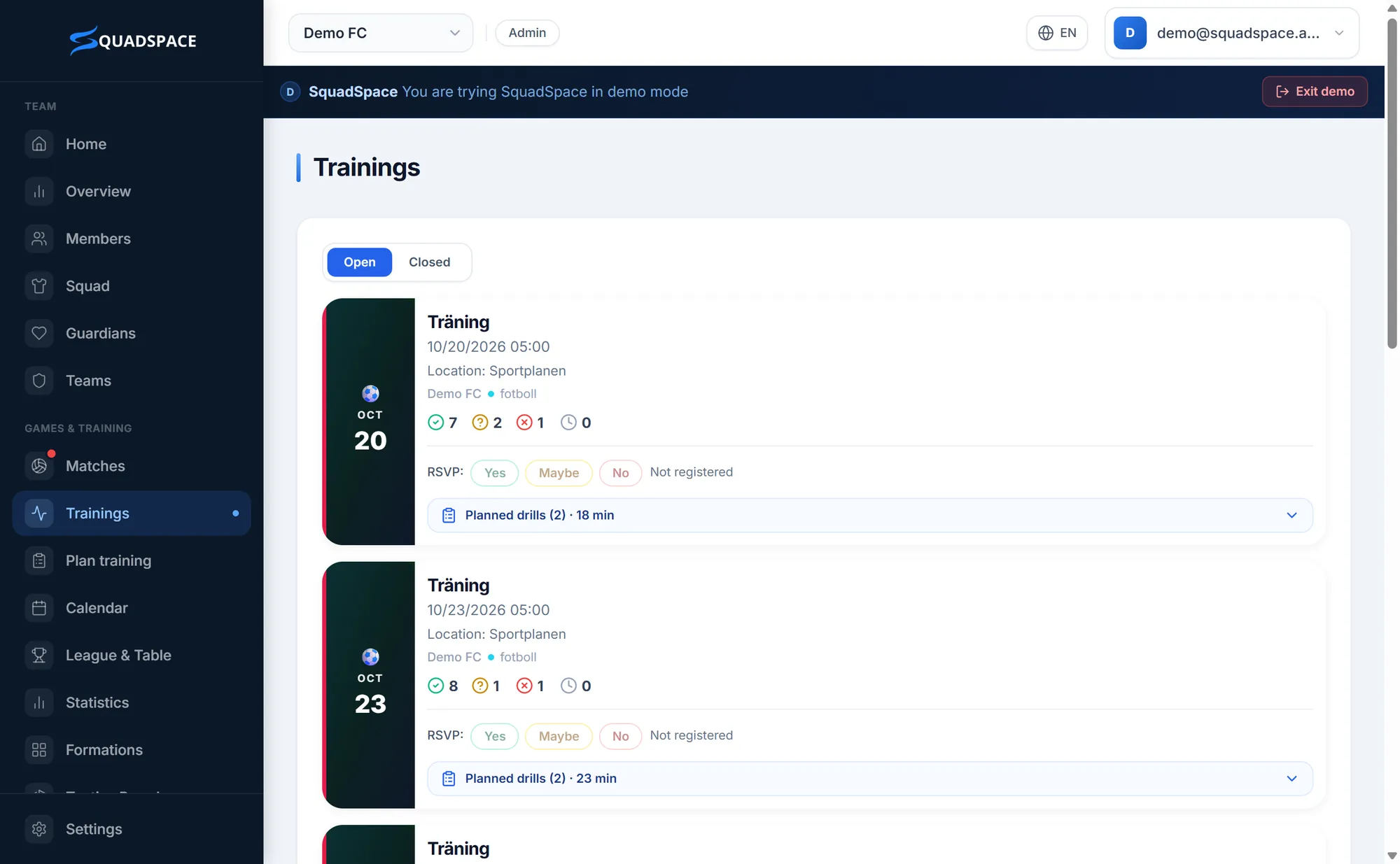
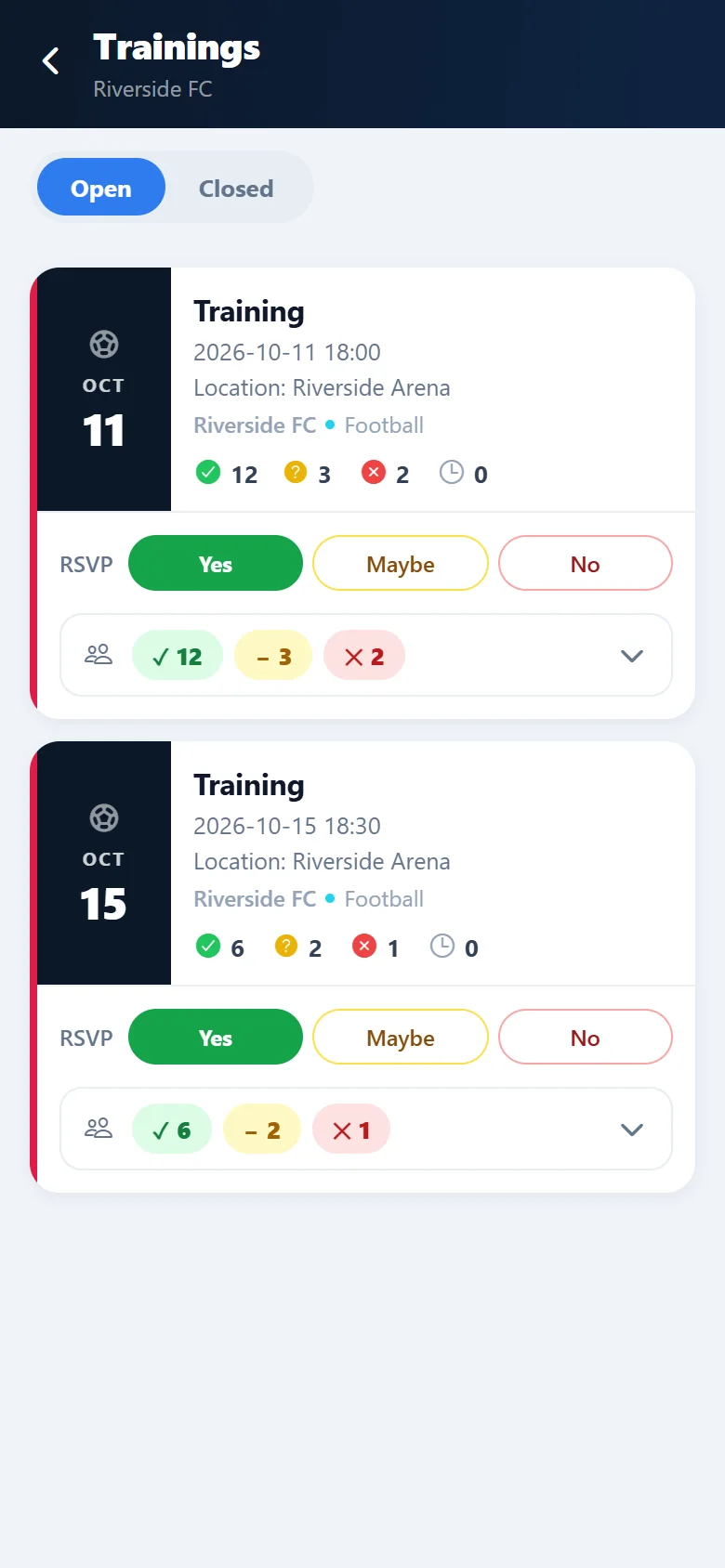
Players answer Yes, Maybe or No to every activity – in the app or on the web – and the counts show on each card.
- 6
Reminders go out automatically before each event. Set the team's default timing under Team reminders in Settings – everyone can fine-tune their own.
Tip: Set a maximum number of participants on an activity and extra sign-ups go on a waitlist automatically.
Step 5 of 9
Connect Stripe to receive payments
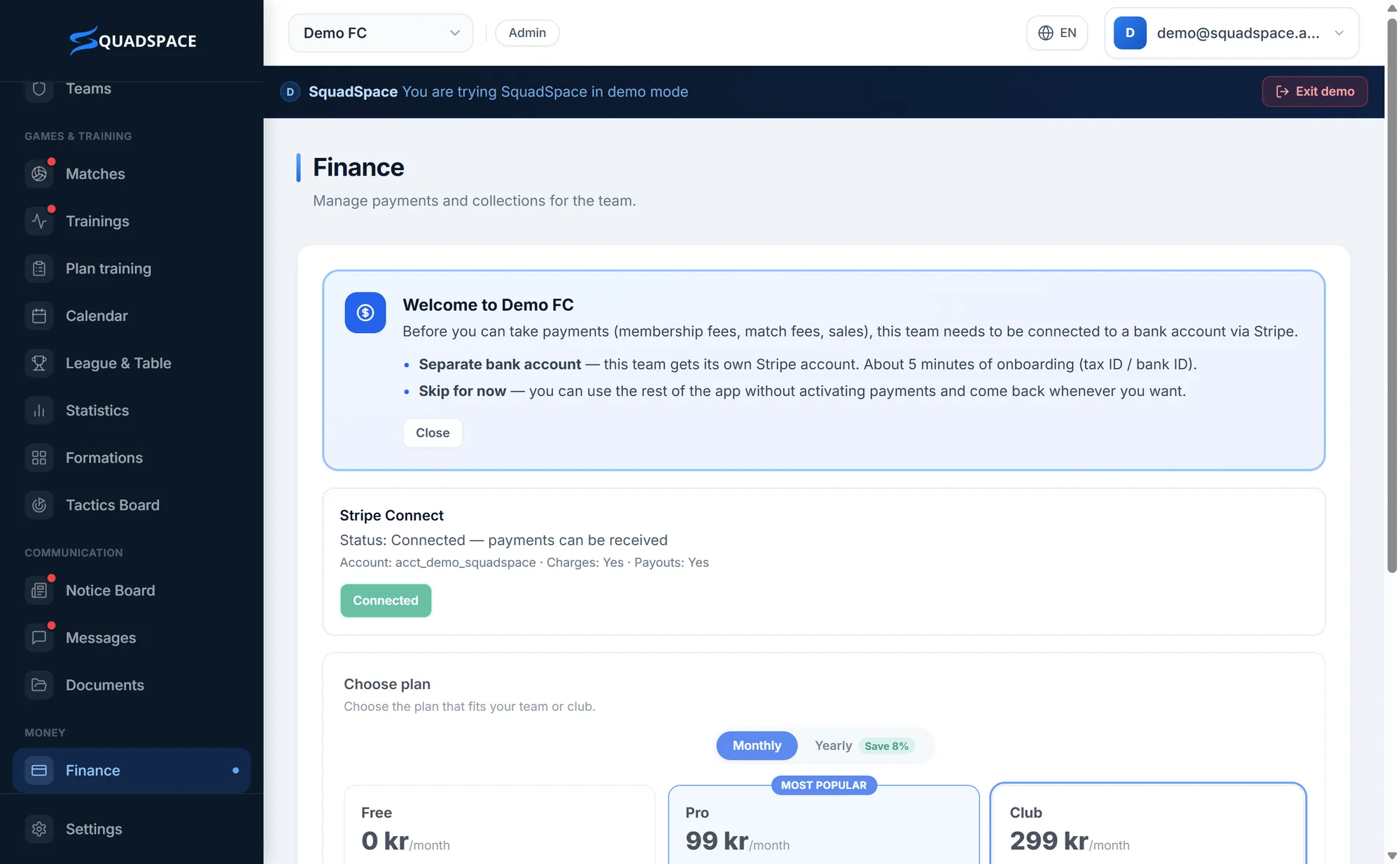
Stripe lets members pay fees by card in SquadSpace. The money goes straight to your bank account – SquadSpace never sees your bank details.
- 1
Open Finance and click Connect Stripe.
- 2
Choose who receives the money: The club (has a registration number) or Me, as the person responsible (for a team without one).
- 3
Check the details we've filled in for you and click Continue to Stripe.
- 4
Verify with Stripe – have an ID number, address and bank account ready. It only takes a few minutes.
- 5
When the status says Connected — payments can be received, you're done. It updates by itself.
Tip: Not ready yet? Click Skip for now and come back whenever you want. During the 14-day trial nothing is locked, so you only need Stripe once you want to take payments.
Good to know: Before the trial ends, connect Stripe and choose a plan – otherwise the admin's menu is limited to Finance until it's done. Coaches and players are never locked out, and no data is lost.
Step 6 of 9
Choose your plan
Try Club free for 14 days, then keep the plan that fits your team. You can change at any time.
- 1
Go to Finance and scroll down to Choose plan – or click Choose plan in the trial banner at the top.
- 2
Switch between Monthly and Yearly – paying yearly saves about 8%.
- 3
Click Upgrade to Pro or Upgrade to Club and pay securely by card.
- 4
Happy with Free? Just connect Stripe – a team with Stripe connected is on Free automatically.
- 5
Change plan or cancel at any time with Manage subscription.
Free
£0/ month
- Calendar, matches & trainings
- RSVP
- Squad & team management
- Team chat
- Stripe Connect & collections
3.9% + £0.25 per payment
Pro
£8.99/ month
Save 8% with yearly billing · £99.99/year
- Everything in Free
- Formations & tactics board
- Time poll
- Push notifications
- Plan training
2.4% + £0.25 per payment
Club
£24.99/ month
Save 8% with yearly billing · £279.99/year
- Everything in Pro
- Multiple teams under one club
- Documents, shared between teams
- Shared collections
- Club dashboard
1.9% + £0.25 per payment
What happens after 14 days?
Your team moves to Free unless you've chosen Pro or Club. Nothing is deleted – Pro and Club features simply pause until you upgrade. To keep the full menu as admin, Stripe needs to be connected.
Step 7 of 9
Collect fees and run fundraising
Membership fees, cup trips and kit: members pay by card and you see straight away who has paid.
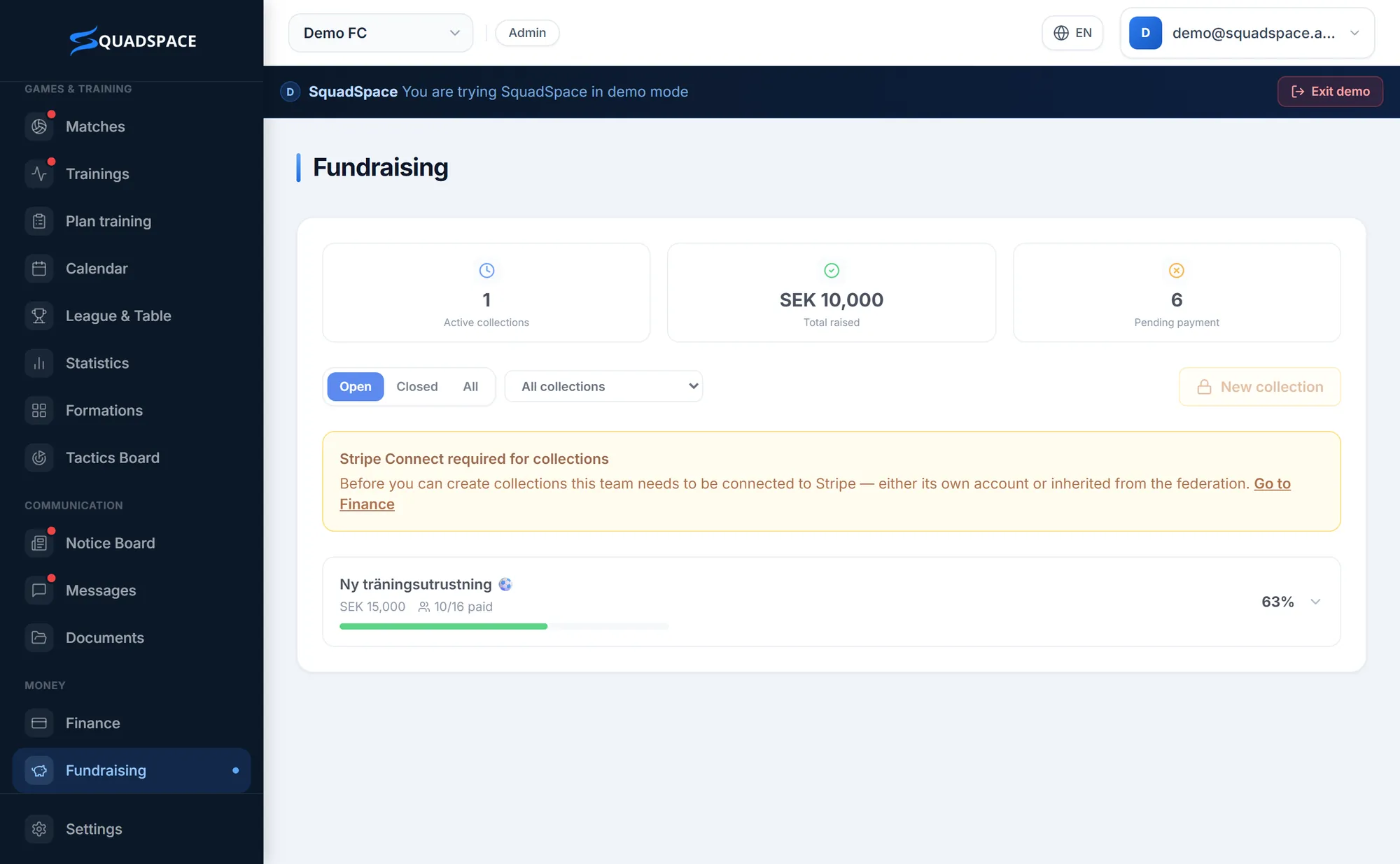
- 1
Open Fundraising and click New collection.
- 2
Choose a category – for example Membership fee or Cup/tournament – enter the amount and pick the recipients.
- 3
Decide who covers the fee: turn on Add the fee to the payer and the club receives the full amount, or leave it off and the club absorbs it.
- 4
Click Create collection. Members pay by card in the app or on the web, and their status updates automatically.
- 5
Follow up in the list: Send reminder to anyone who hasn't paid, Mark as paid for cash payments, or Refund a payment.
SquadSpace fee per card payment
- Free
- 3.9% + £0.25 per payment
- Pro
- 2.4% + £0.25 per payment
- Club
- 1.9% + £0.25 per payment
Tip: When you refund a payment, SquadSpace's fee is refunded too.
Good to know: Collections need Stripe to be connected (step 5).
Step 8 of 9
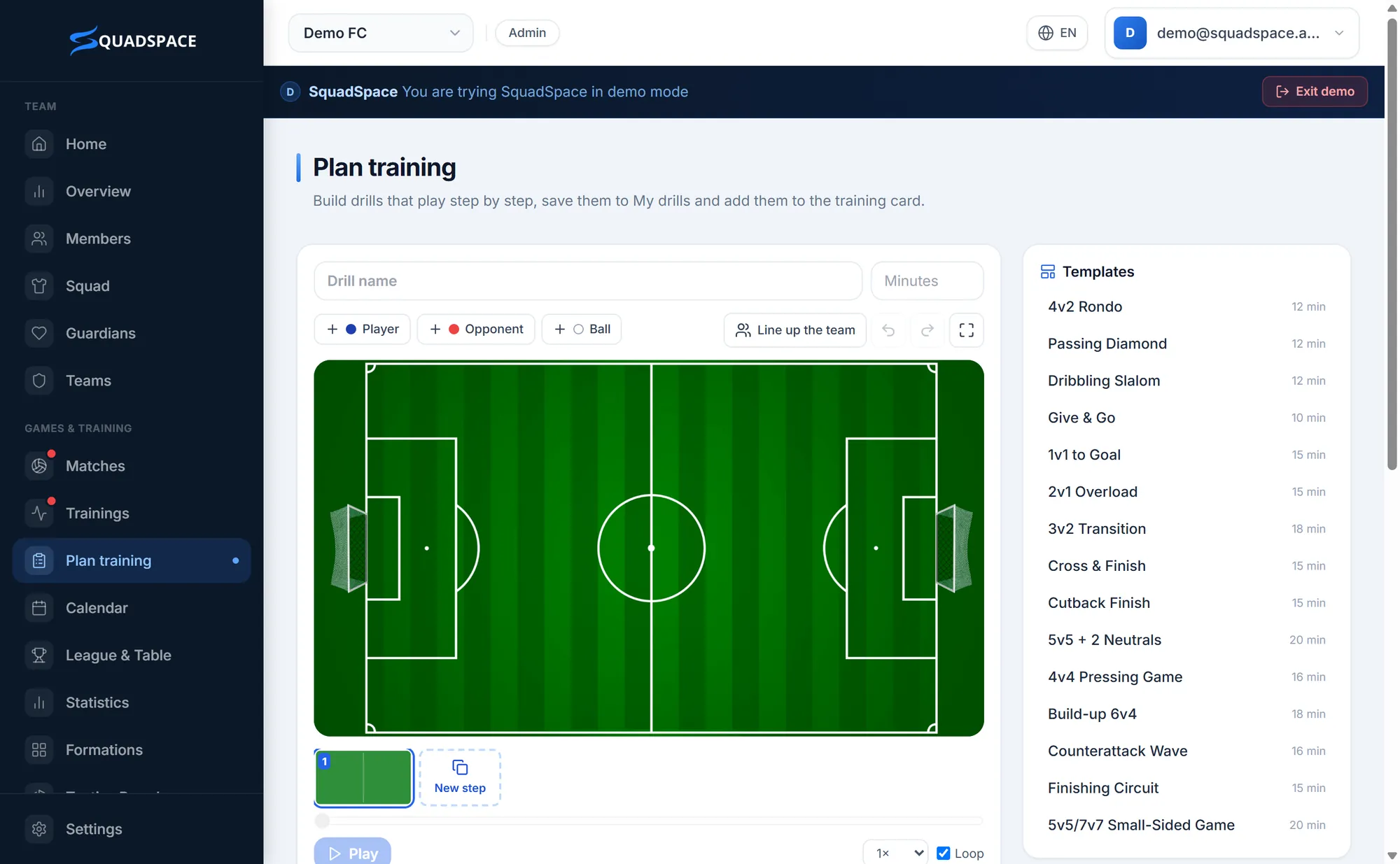
Plan training with animated drills
Show the drill instead of explaining it – players see exactly what to do before they step onto the pitch.
- 1
Open Plan training in the menu.
- 2
Start from Templates – 90 ready-made drills, 15 for each sport – or click New drill.
- 3
Place players, cones and the ball, add a New step for each movement and click Play to watch it animate.
- 4
Click Save to My drills to reuse the drill later from My drills.
- 5
Click Add to training and pick a session – the drill appears under Planned drills on the training card.
Tip: Plan training is included in Pro and Club – and in your 14-day trial.
Step 9 of 9
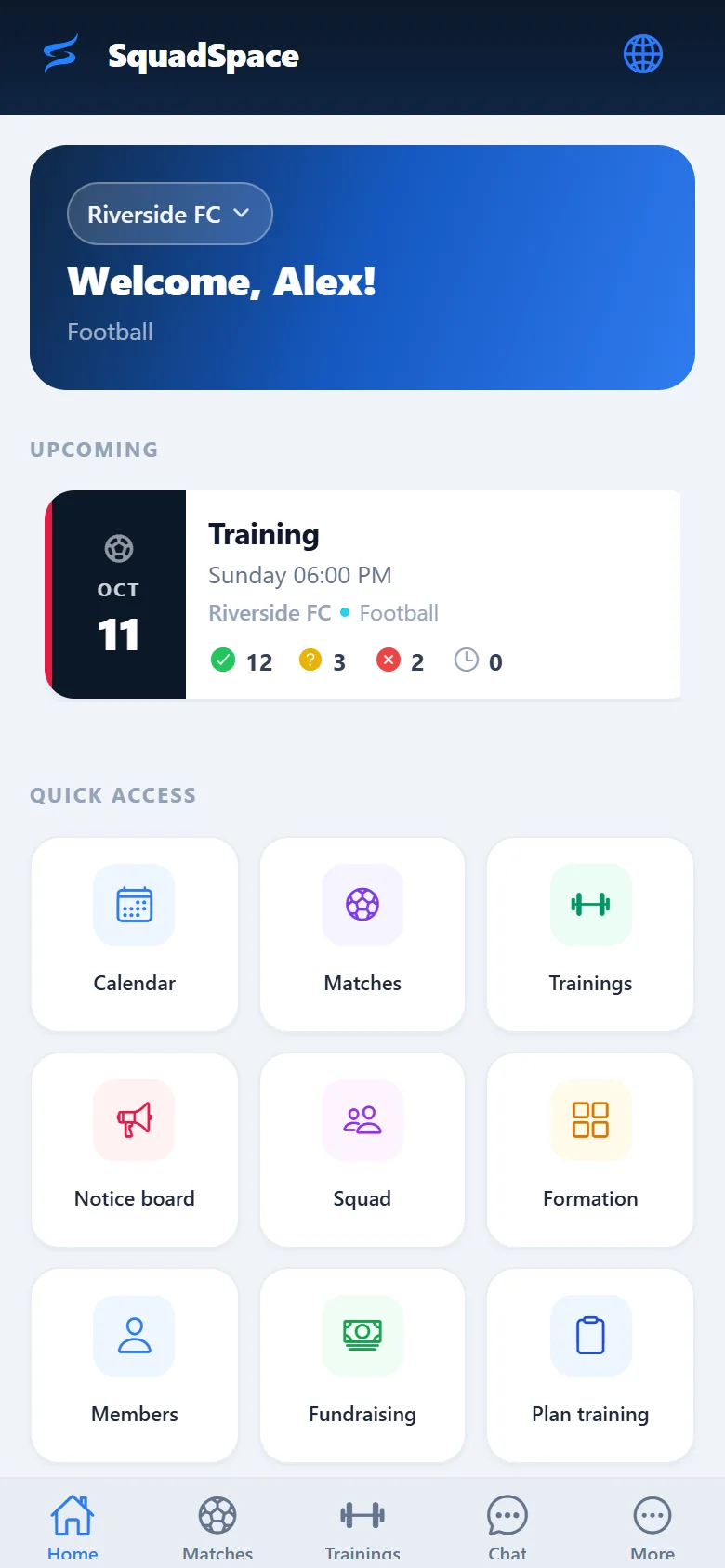
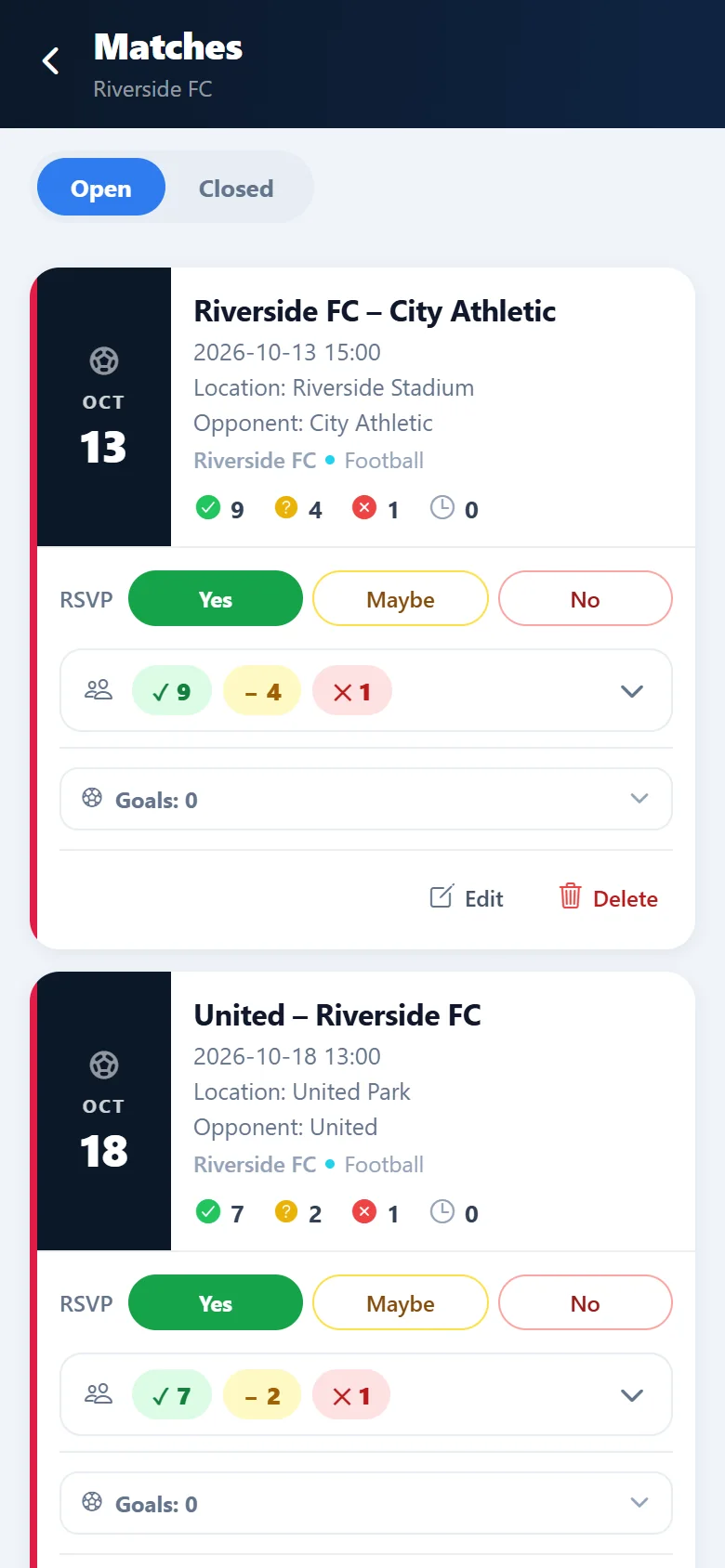
Get the app – and you're all set
Coaches, players and parents get the whole team in their pocket, while you keep the big screen for planning.
- 1
Download SquadSpace from the App Store or Google Play and sign in with the same account.
- 2
Allow notifications to get reminders, new messages and payment requests.
- 3
Use Messages for the team chat and the Notice Board for news, pictures and polls.
- 4
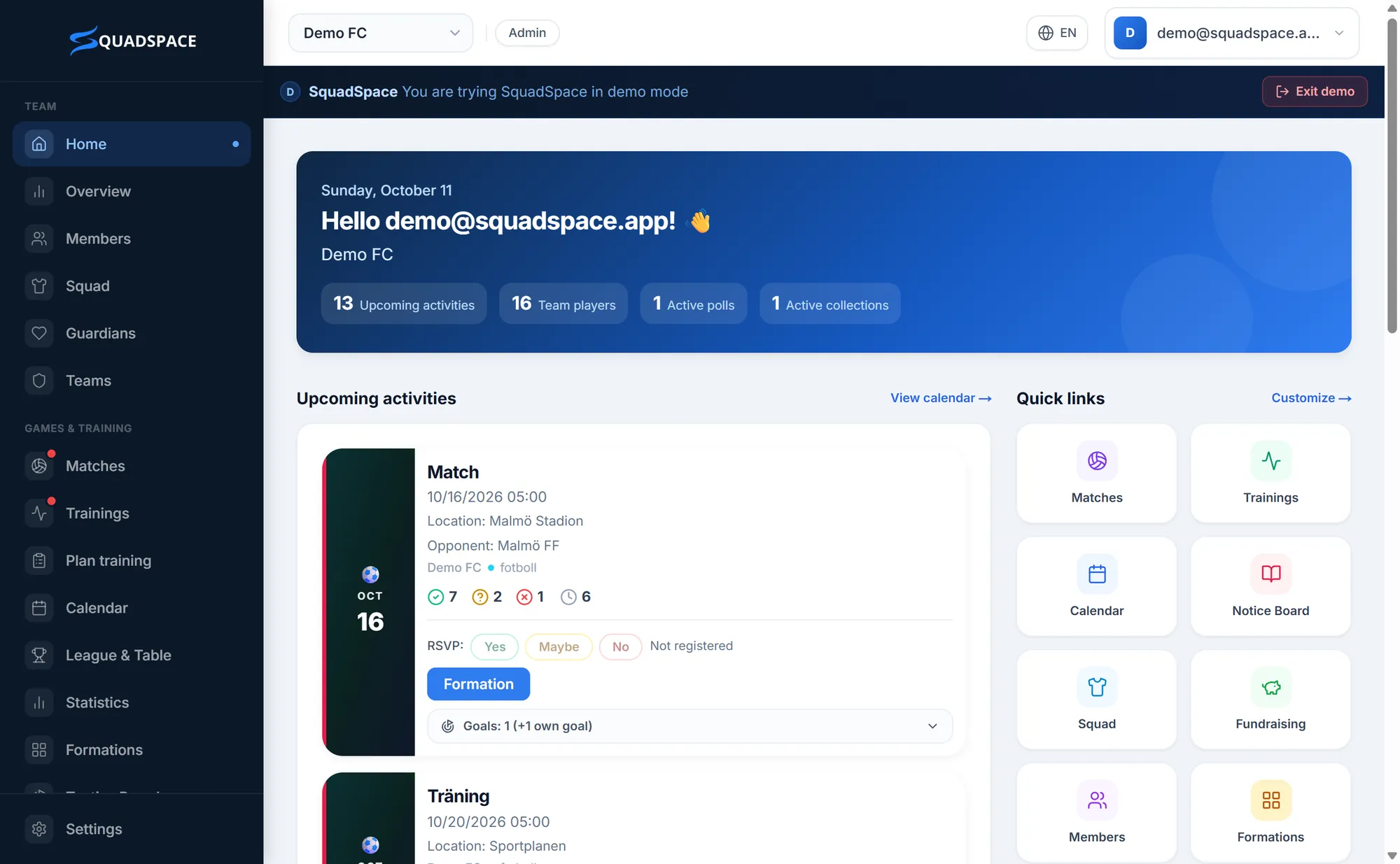
On the web, Home gathers upcoming matches, trainings and quick links – perfect for planning at your desk.
- 5
Everyone chooses which notifications they want under Settings.
Tip: The app and the web share the same data – change something on one and it's on the other straight away.
You're ready to go
Your team is set up. Invite the last few, add the next training – and enjoy having everything in one place.
Get the app
For iPhone and Android – or use everything right in your browser.
Frequently asked questions
Do I need Stripe to get started?
No. You can set up the team, invite everyone and plan the season first. Stripe is needed to take payments – and for admins to keep the full menu after the 14-day trial.
What happens when the trial ends?
Your team moves to Free unless you've chosen Pro or Club. No data is lost – Pro and Club features pause until you upgrade.
Do players have to download the app?
No – everything also works in the browser. The app is just the quickest way to answer and to get notifications.
Can parents answer for their child?
Yes. Link a parent under Guardians – they get their own account with access to everything about their child: matches, trainings, payments and more.
Are payments safe?
Payments are handled by Stripe, used by millions of businesses worldwide. SquadSpace never sees your bank details.